
I never thought a voice changer would become one of my go-to streaming tools. Honestly, I stumbled onto it by accident.
It was a slow Tuesday night, midway through a Valorant ranked session, and chat was getting a little restless. Someone typed “do a funny voice,” and I just… couldn’t. My regular mic was doing its thing, but I had nothing in my arsenal to actually switch things up in the moment. I started poking around for something that could add a little personality to my streams without making me sound like I’d dragged a low-effort audio filter from 2009 into my setup.
That’s when I found iTop Voicy. And yeah, it actually changed how I approach streaming.
Getting Started Was Easier Than I Expected
My biggest fear with any new audio software is the setup process. I’ve spent entire evenings wrestling with drivers, virtual cables, and DAW routing just to get basic effects working. iTop Voicy was genuinely different.
Here’s basically how I got it running:
Step 1: Download iTop Voicy from the official website and install the software. It took maybe three minutes, no weird third-party dependencies or driver conflicts.
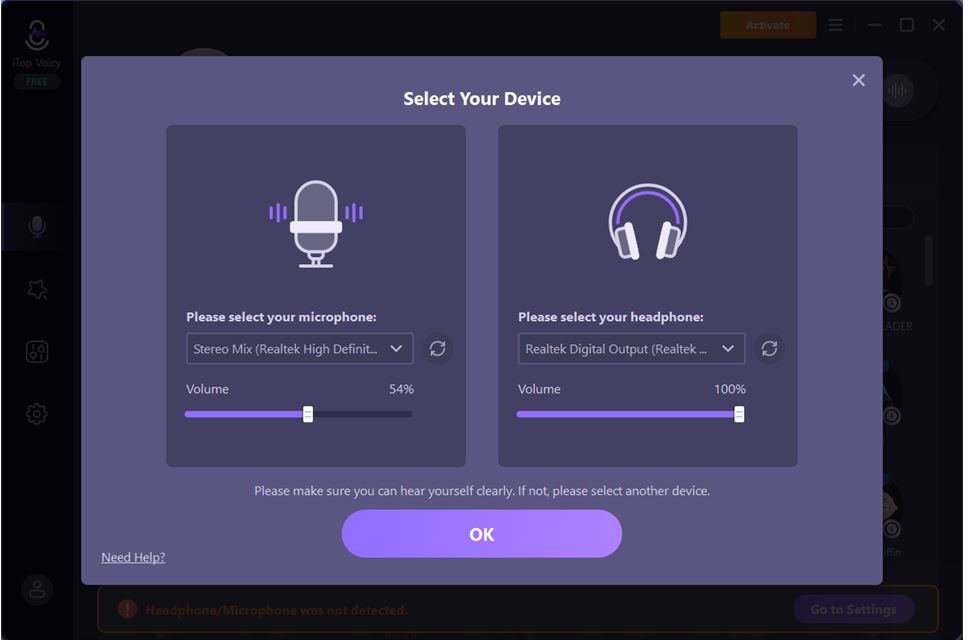
Step 2: Open the app and select your device, including the microphone and headphones.
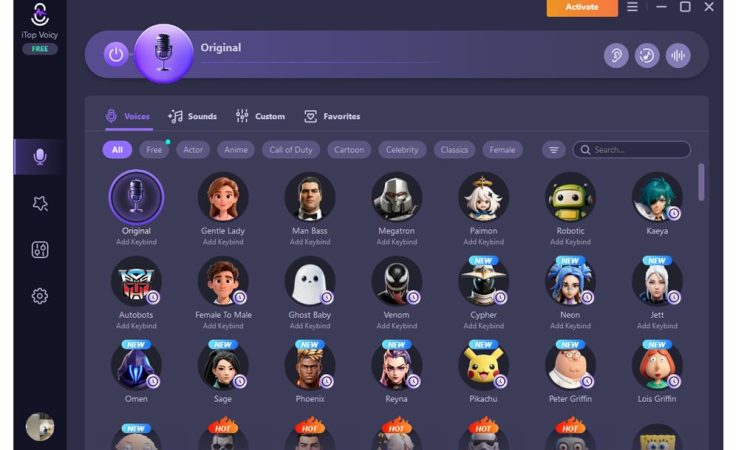
Step 3: Pick a voice effect. There’s a solid library in there, ranging from robot and deep monster voices to more subtle pitch-shift options and even some gender-swapped tones. I started with the robot voice because, well, chat demanded it.
Step 4: Set iTop Voicy as your microphone input inside OBS or whatever streaming software you use. Once that’s done, whatever voice you’ve selected goes live in real time.
The whole process from download to first use took maybe fifteen minutes. For someone who has spent hours debugging audio routing in the past, that felt almost suspicious.
What Actually Works Well
The real-time switching is where iTop Voicy earns its keep. I can flip between my normal voice and an effect mid-sentence, which sounds like a small thing until you’re doing a bit for chat and you need it to land immediately. Latency is low enough that it doesn’t feel like you’re performing with a delay, which was my biggest concern going in.
The effect quality is also noticeably better than some of the free browser-based alternatives I’d tried before. The robot voice doesn’t sound like a broken walkie-talkie. The pitch-down effect actually sounds beefy rather than just muffled.
There’s also a built-in soundboard feature, which I didn’t expect. I’ve got a few custom clips loaded in now, and it’s become a running joke with my regulars. Small thing, but it adds texture to longer streams.
As a voice changer for PC, it’s compatible with the usual suspects beyond OBS too: Discord, Zoom, and game lobbies. I’ve used it in party chat during co-op sessions, and it genuinely catches people off guard in a fun way.
Where It Falls Short
I want to be honest here because I think vague reviews that make everything sound perfect are useless.
The free version has a limited effect library. You get enough to test the tool properly, but if you want the full range of voices and the custom soundboard slots, you’ll need a paid plan. That’s fair for a software product, but worth knowing upfront before you get attached to a specific effect.
The interface is clean, but could use a bit more organization as they add more effects. Scrolling through a growing list isn’t the most intuitive experience when you’re trying to switch voices quickly mid-stream.
And while the app is lightweight, I did notice a small CPU uptick during longer sessions. Nothing dramatic, but if you’re already running OBS, a game, and browser tabs simultaneously, it’s worth keeping an eye on your performance metrics.
Would I Recommend It?
Yeah, genuinely. It’s become a regular part of my stream setup, and that’s not something I say lightly. My chat engagement picked up noticeably in the first couple of weeks after I started using voice effects, partly because it gives me more tools to commit to bits and react to the room in real time.
If you stream regularly and you’re looking for a way to add some energy without overhauling your whole audio chain, iTop Voicy is worth trying. Start with the free version, see if the workflow fits, and go from there.
It won’t replace good content or genuine chemistry with your audience. But it’s a solid tool that does exactly what it says it does, and that’s more than I can say for many of the pieces of software I’ve tried in this space.

DigiTechnoPost is a top-rated technology and digital transformation blog where we cover the insightful article about the technology, blogging, WordPress, digital transformation, and digital marketing. We can assist you to digitize your business by providing the best digital transformation & marketing tips. You may follow us on Twitter and Facebook.