
I used to feel a little nervous every time I uninstalled something. The app would vanish from the list, but I always wondered what it had quietly left behind: startup entries, temp files, odd services, browser add-ons.
After years of installing and testing tools, games and trial software, that uncertainty turned into a real problem.
That is when I started using IObit Uninstaller and, over time, it turned uninstalling from something I dreaded into a simple, almost routine step of keeping my PC healthy.
Why Uninstalling Used To Stress Me Out
- On the surface, removing software in Windows looks straightforward. You go to Apps and Features, hit Uninstall and watch a progress bar. In reality, that rarely tells the whole story:
- Some apps disappear from the list but leave folders and registry keys behind.
- Others install extra components such as services, scheduled tasks and browser plug-ins.
- A few simply refuse to uninstall correctly and leave pieces scattered around the system.
Over time, I noticed that even after cleaning the list of installed programs, my SSD space kept shrinking and tiny glitches appeared in context menus, startup and browsers.
I knew there were leftovers hanging around; I just did not have a good way to see and remove them safely.
What I Needed From An Uninstaller
Before I settled on any tool, I wrote down what would actually give me peace of mind:
- See everything that is installed, including Windows apps and browser add-ons, not just classic desktop programs.
- Remove programs completely, including their files, folders and registry entries.
- Handle stubborn items and bundleware that normal uninstallers ignore.
- Show me what changed, so I can undo things if I need to.
- Give me a quick “health check” of my software environment from time to time.
When I read what IObit Uninstaller 15 promised to do, it matched that list almost point for point.
What IObit Uninstaller Actually Brings To The Table
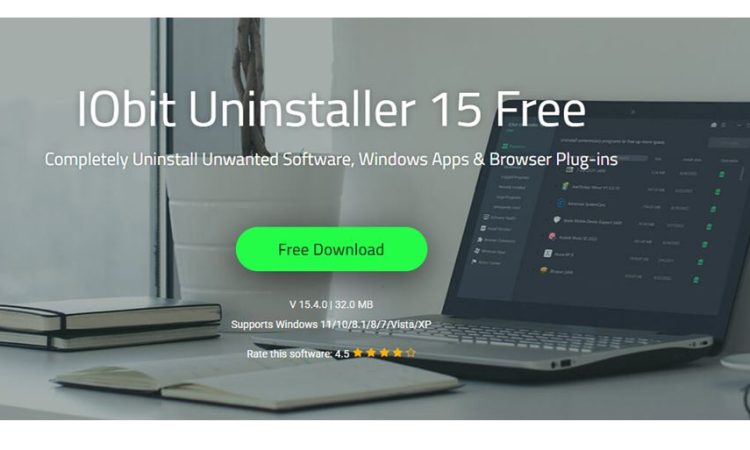
The official description positions IObit Uninstaller 15 Free as a powerful uninstaller for Windows that completely removes programs, Windows apps and browser plug-ins and then cleans leftover files to keep the PC clean and light.
A few features are directly responsible for the peace of mind I get now:
- One click removal of unused and bundled programs and Windows apps, including many built-in components that Apps and Features does not handle well.
- An upgraded uninstall engine with improved scanning algorithms that detect and clean more leftovers, such as temp files, installation logs and registry keys.
- Automatic detection and removal of malicious or ad-based browser plug-ins and extensions, supported by an enlarged database.
- Software Health, which analyses software leftovers, redundant setup files, hibernated software, intrusive notifications and unsafe permissions and fixes them with one click.
- Install Monitor, which can log changes made by new software, so uninstalls can reverse those changes more accurately later.
Once I understood that it watched the full life cycle of my software rather than just the uninstall moment, I stopped second-guessing every removal.
How My Uninstall Process Looks Now
Checking what is really installed
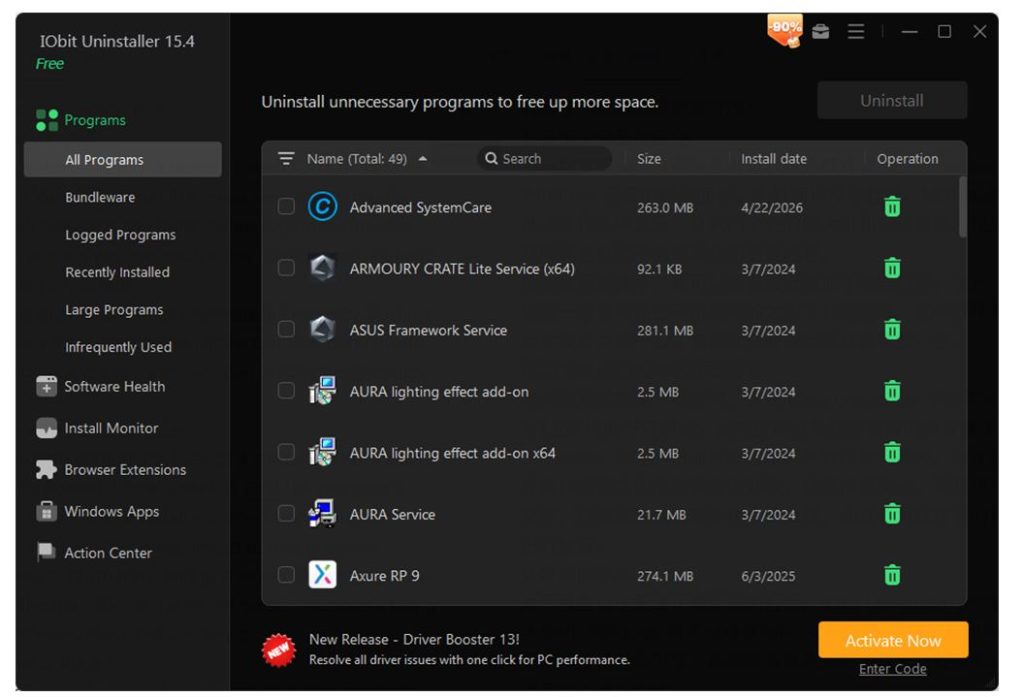
Whenever my system starts feeling cluttered, I open IObit Uninstaller instead of the default Windows panel. The main view shows regular programs, Microsoft Store apps and bundleware together, with size and install date. That alone gives me much more confidence that I am not forgetting anything important.
Sorting by install date lets me see what I have added recently. Sorting by size highlights heavy tools and games I no longer use. Bundleware and infrequently used apps are grouped so I can quickly decide what to remove.
Removing programs with Powerful Scan
When I choose to uninstall something, I click Uninstall with Force Uninstall enabled. First, the program’s own uninstaller runs, then IObit Uninstaller immediately scans for leftover folders, files and registry entries linked to that program.
Seeing that list before I confirm the cleanup is what calms my worries. I know that not only the main files but also the hidden traces are being addressed, and I can review them before they go.
Dealing with stubborn software
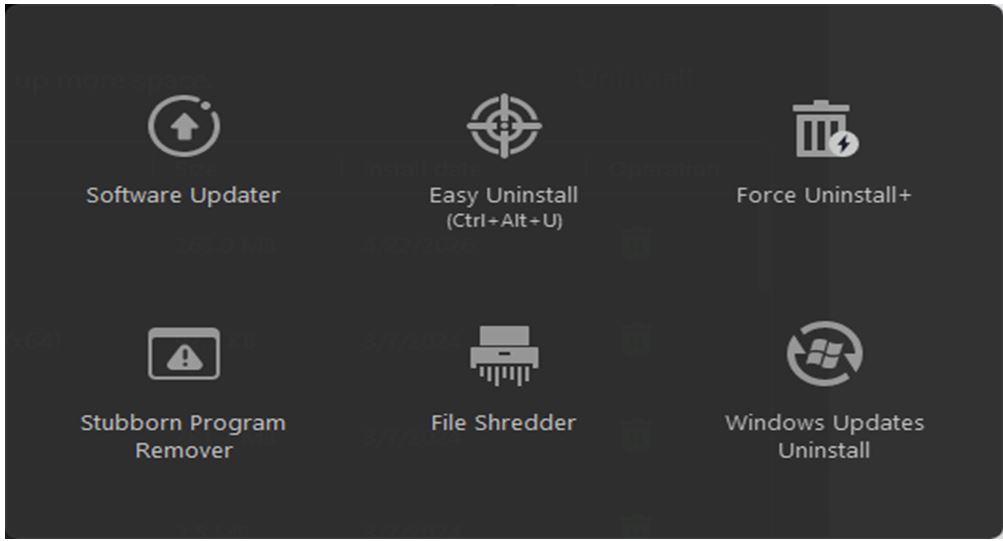
For programs that refused to uninstall in the past, IObit Uninstaller’s stubborn program remover and Force Uninstall mode are my safety rope. The tool uses its expanded database and upgraded engine to remove stubborn software that other uninstallers cannot handle, and then wipes the leftovers.
The fact that those previously “immortal” entries finally disappear from the system gives me a strong sense that the machine is under control again.
Cleaning browsers and notifications
Peace of mind is not just about installed programs. Browser plug-ins and notification permissions can be just as messy.
I use the Browser Extensions area to view toolbars and add-ons for Chrome, Edge and others in one place. IObit Uninstaller marks malicious or ad-based plug-ins and lets me remove them and block related spam notifications.
Knowing that I have a simple way to clear out unwanted extensions and pop-ups makes me much more comfortable trying new tools, because I know I can roll back their browser changes.
Running Software Health as a final check
After big cleanups or once a month, I run Software Health. It scans for leftover data from old uninstalls, redundant setup caches, hibernated software that is just wasting space, and intrusive notifications or permissions that slipped in along the way.
With one click on Fix, it cleans or adjusts those items. That “final sweep” is what makes me feel like I have actually finished the job instead of just removing icons.
Where The Peace Of Mind Comes From
Over time, I realised that the calm feeling I get from using IObit Uninstaller boils down to three things:
Visibility
I can see almost everything that is installed and how large it is, including Windows apps and browser components. There are fewer surprises hiding in corners.
Control
I know that when I remove a program, a powerful leftover scan is going to run and show me exactly what is being cleaned. If something looks wrong, I can uncheck it before confirming.
Ongoing maintenance
Software Health, bundleware detection and Install Monitor mean that I am not only reacting when there is a problem. The tool helps me keep the software environment in good shape all the time.
Instead of wondering what a program left behind, I now trust the process I follow every time.
A Few Imperfections That Keep Me Realistic
No tool is flawless, and acknowledging that actually helps my confidence in it:
- Full scans take a bit of time on a system with a long history, so I schedule them for moments when I am not working.
- The interface has several sections and options, which can feel like a lot at first, though it becomes natural after a few sessions.
- When I enable restore point creation and very thorough cleanup, I see extra confirmation prompts. They slow things down but they also make sure I know what is happening.
- Those small frictions remind me that there is real power under the hood and that I should still pay attention, which is a good thing.
Why I Now Uninstall Without Worry
Today, removing software is no longer a gamble for me. I open IObit Uninstaller, a trusted uninstaller for Windows, choose what needs to go, let it run its uninstall and leftover scan, clear any extra browser junk, and finish with a Software Health check.
My system stays cleaner, boot times are more consistent and, most importantly, I am no longer left wondering what kind of digital debris each program has left behind.
That quiet confidence is exactly what I mean when I say IObit Uninstaller gave me peace of mind every time I remove a program.

DigiTechnoPost is a top-rated technology and digital transformation blog where we cover the insightful article about the technology, blogging, WordPress, digital transformation, and digital marketing. We can assist you to digitize your business by providing the best digital transformation & marketing tips. You may follow us on Twitter and Facebook.